Showing posts with label Linux. Show all posts

Saturday, 27 March 2021

Developing Linux programs in Visual Studio C++

 Developing Linux programs in Visual Studio C++

Though Raspberry PIs (and other Linux based machines) are well supported with development environments, the familiar Windows based Visual Studio does make it easier to develop applications, especially where the target machine is not particularly powerful.

The following uses the free Visual Studio Microsoft Visual Studio Community 2019 Version 16.9.2.

Set Up

Start the Visual Studio Installer from the Start button or by searching.


Update Visual Studio.

Once it has been updated, click on the Modify button (not quite as obvious as it could be).

Select the Linux C++ option (you need to scroll down a bit).


Click on the Modify button (bottom right).

Set up Linux machine

sudo apt-get install openssh-server g++ gdb make ninja-build rsync zip

Start SSH on the Linux machine (if not already started).

sudo service ssh start

First project

Start Visual Studio. Click File/New Project.

Search for Linux templates.

Start with a Console Application, suitable for any Linux machine.

This provides a bare bones “Hello World” C++ project.
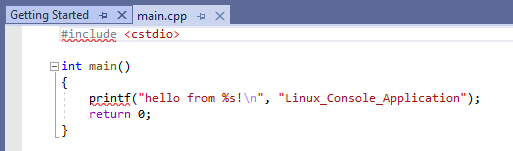


Click on Build/Rebuild Project.

Visual Studio will ask for the Linux machines hostname,  username and password. The username and password should be a login on the Linux machine. Ensure that the Linux machine is configured to allow SSH through the firewall (see Simple Firewall oSimple Firewall r the Raspberry Pi Config program).

On the Linux machine you will find a folder called projects in the user folder. See below. 

Open a terminal on the Linux machine and change directory to this location.

To run the program enter.

./"Linux Console Application.out"

References

https://docs.microsoft.com/en-us/cpp/linux/download-install-and-setup-the-linux-development-workload?view=msvc-160

https://docs.microsoft.com/en-us/cpp/linux/create-a-new-linux-project?view=msvc-160


Monday, 25 May 2020

Setting a default screen size for a headless Raspberry PI

I have a few Raspberry Pis, and most of them are run "headless" (without keyboard or display).

Now the default screen size for a headless PI is what used to be called VGA and has a resolution of 640 x 480. This was state of the art in the 'nineties, but unfortunately the majority of software expects a larger display. This means that programs tend to fall off the available screen size, in some case losing the close button as well.

You can set the display resolution via the Raspberry Pi configuration tool or via the command line using raspi-config. The problem is that there is no guarantee that your chosen display mode will then work with your monitor.

This particuklar resolution (720p) works okay on monitors and via VNC. Other options are available.

This can be set by editing the config.txt file

sudo nano /boot/config.txt

Scroll down to this section (the highlighted text areas will probably read VGA and 1 respectively). Change the mode to 4 and the resolution description - that is for your information later).
# uncomment to force a specific HDMI mode (this will force 720p resolution)hdmi_group=1hdmi_mode=4
Use Control X, Y to save and accept the default file name to save the changes.

Reboot your machine and you should have a much more workable graphics screen on VNC.

References

Sunday, 3 May 2020

Chaos - and the Headless Raspberry Pi

Cryptography is a voracious consumer of randomness, and computers depend on cryptography for security. Most operating systems harvest this randomness (under the name of entropy) from various pieces of hardware, quite often from mouse movement or keyboard operation. This is fine when the computer has a keyboard and/or mouse, but what happens when the computer is running headless?

Raspberry Pis quite often run headless, and remote operation using products like RealVNC encrypt the communication between the server and the client. To maintain security, no connection can be made until there is sufficient stored entropy. This can lead to long delays between switching the computer on and being able to connect to it remotely.

The package haveged is available in Debian based systems (including Raspbian and Ubuntu) and fills the entropy pool when the supply falls below a set value. This will speed up the start up of RealVNC.

Installing haveged

sudo apt-get install haveged

References


Tuesday, 29 January 2019

Simple backup of a Raspberry Pi


Back up SD card data to USB drive

The Raspberry Pi generally uses an SD (or microSD) card as its main storage. This is a cheap and generally reliable storage medium, but it is vulnerable to problems if the power is interrupted while data is being written.

If the power is interrupted (by the cat pulling the power lead out or you thinking it is the mobile 'phone's charger etc.) there is always the possibility that the SD card may become corrupted and all the data is lost.

Of course, you should be running a backup process on any system.

Back up home directory


To back up your home directory to a mounted USB drive, use the following command lines. You will need to know the name of the USB drive (have a look in /media.pi for the USB drive), replace the "name_of_usbdrive" with the actual drive name. You might want to replace "mypi" with the network name of the machine if you have a number of different systems.

First change directory to the /home directory (off of root).

cd /home/
Note space between change directory and directory path.

sudo tar czf /media/pi/name_of_usbdrive/backups/mypi_$(date +%Y%m%dT%H%M)home.tar.gz pi

Once that is running, go off and make a beverage of choice, it will take a while, and using the machine will upset the backup (as any use may cause a file change).

Note

One thing to be aware of, this will back up the contents of the trash bin. 
This might cause issues as the zip process falls over at about 4GB, and deleting files just puts them in the bin.

It might be worth emptying the bin occasionally.

You might also not want some deleted items to be backed up ^___^.